Stop Wasting Time Inserting Google Sheet Into Google Doc
Tired of the weekly copy-paste marathon for your reports? There’s a much smarter way. You can take any chart or range of cells from a Google Sheet, paste it into a Google Doc, and choose the Link to spreadsheet
option. Just like that, you've created a live connection that keeps your document in sync with your data.
Turn Your Static Reports Into Living Documents
Let’s be real—manually updating reports is a soul-crushing task. Whether it's a project dashboard, a sales summary, or a marketing KPI tracker, the data is often outdated the moment you hit send.
By embedding a Google Sheet directly into your Doc, you transform that static snapshot into a living source of truth. Imagine never having to hunt down the latest numbers or nudge colleagues for updates again. The data your team needs is right there, always current, embedded directly into the reports where decisions actually get made. This one simple move can save you and your team countless hours of tedious, repetitive work.
Create a Self-Updating Hub for Your Team
When you connect a Sheet to a Doc, you’re doing more than just saving time. You’re building a reliable, self-updating information system that brings a new level of accuracy and confidence to your workflow.
- Slash Human Error: Linking data directly eliminates the typos and mistakes that creep in with manual copy-pasting. Everyone is finally working from the same, correct figures.
- Move Faster: When your reports reflect changes in real-time, your team can react instantly to shifting sales trends or updated project timelines.
- Establish a Single Source of Truth: Your document becomes the definitive place for information, powered by a single, controlled data source—your Google Sheet.
The real game-changer here is building an ecosystem where information flows automatically. You’re removing the friction and bottlenecks that slow teams down, creating a more responsive, data-driven culture.
This shift toward connected documents is a core principle of effective cloud-based collaboration done right. It’s about making your tools work for you, not the other way around. Ultimately, creating this single source of truth doesn't just save time; it prevents the costly mistakes that happen when people act on outdated information.
Link Google Sheets Data for Live Updates
If you need your Google Doc to reflect the very latest numbers from a spreadsheet, the most straightforward approach is to link them directly. This is the simplest, most direct way to get a chart or a specific range of cells from your Sheet into your Doc and keep it dynamic.
Think about it—you’ve got your Q1 sales data, project timelines, or marketing KPIs all perfectly organized in a Google Sheet. To pull that into a report, you just copy the cells or chart you need, pop over to your Google Doc, and paste. You'll see a small dialog box appear, and the key here is to choose Link to spreadsheet. Doing this creates a live connection, ensuring your document always has the most current information. This simple move is a core part of building an efficient workflow. For a deeper dive, you can explore what workflow automation is and how it can transform your work.
Take Control with Manual Updates
One of the best parts about this feature is that you’re always in the driver’s seat. I’ve seen people worry that their data might change in the middle of a presentation or right before they send a report off. But Google thought of that.
Linked tables and charts don't just update on their own. Instead, whenever a change happens in the original Sheet, a small Update button conveniently appears over the chart or table in your Doc. This gives you total control. You click it only when you’re ready to pull in the fresh data. It's perfect for things like client proposals or performance reviews where you need to freeze the numbers at a specific moment in time.
Deciding between a live, dynamic report and a static, unchanging one is a common crossroads. This flowchart can help you think through which path makes sense for your situation.
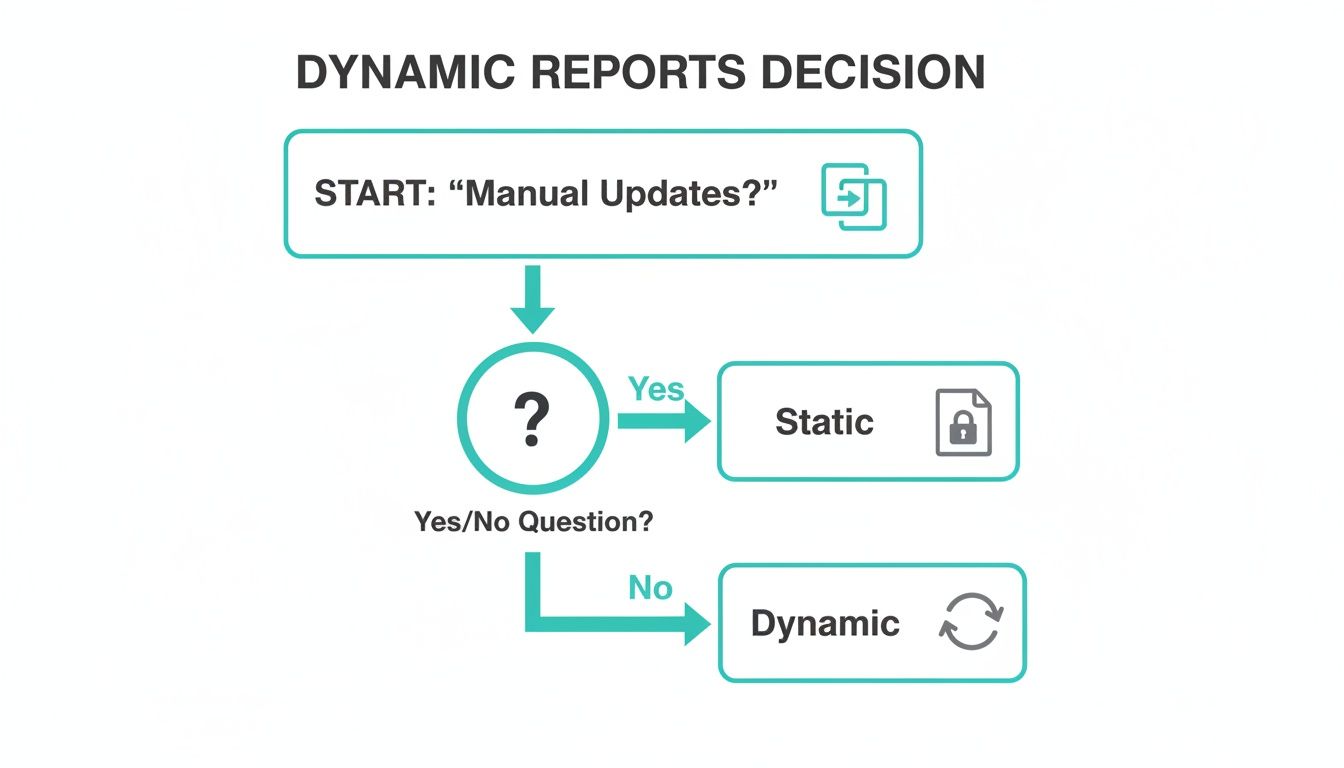
The takeaway here is pretty clear: if your reports need to grow and change right alongside your data, linking is the way to go.
Choosing Your Google Sheets Integration Method
With a few ways to get your data from Sheets to Docs, it helps to see them side-by-side. This table breaks down the most common methods to help you pick the right one for the job.
| Method | Best For | Data Syncing | Effort Level |
|---|---|---|---|
| Linked Table/Chart | Reports, dashboards, and documents that need to stay current. | Manual (click Update) |
Low |
| Static Copy/Paste | One-off reports, historical snapshots, or final documents. | None (it's a snapshot) | Very Low |
| Screenshot/Image | Visual-only needs where data integrity isn't critical. | None (static image) | Very Low |
| Apps Script/Add-ons | Fully automated, complex reporting workflows. | Automatic or triggered | High (requires coding) |
Ultimately, for most day-to-day reporting, the native Link to spreadsheet
feature hits the sweet spot between simplicity and power.
This feature has been a quiet game-changer for a while now. A 2022 Google Workspace study even found that teams embedding Sheets in Docs cut their document revision time by 37%. That simple integration saved team members an average of 2.5 hours per project each week by getting rid of all that tedious manual copy-pasting and double-checking. You can find more on what Google Sheets can do on their official product page.
When you link your data, you're doing more than just inserting a table. You're building a reliable bridge between your analysis and your reporting. This keeps everything consistent and lets your team focus on the insights, not on the busywork of moving data around.
Automate Reporting with Powerful Add-Ons
When a simple linked table just doesn’t have the muscle you need, it's time to call in the specialists. Google Sheets add-ons are the secret weapon for a level of automation that can overhaul your entire reporting pipeline, taking you far beyond basic data linking.
Think about it. Instead of manually exporting and pasting numbers, you could use an add-on like Coefficient to automatically sync fresh data from Salesforce right into your Sheet. That live data then populates perfectly formatted invoices or project summaries in Google Docs—all without you lifting a finger. This isn't just about embedding a table; it's about building a smart, self-running system.
From Manual Work to One-Click Generation
Let's look at a real-world example. Your marketing team needs to get live Google Analytics 4 charts into their monthly report. With the right add-on, that data refresh is scheduled, the charts update on their own, and the final report is always ready to go. No more end-of-month scramble.
Or picture an HR team using an add-on like Document Studio. They can merge candidate data from one master Sheet into hundreds of polished Google Doc offer letters. This lets them generate personalized, error-free documents with a single click, cutting out hours of tedious work.
This kind of automation lets you stop worrying about the how of creating reports and start focusing on the why—the strategic insights buried in the data. Your team’s energy shifts from tedious assembly to high-value analysis.
Add-ons like these have seriously changed the game. With over 5 million installs projected by 2025 across the Workspace ecosystem, it's clear people are catching on. These tools automate the most mind-numbing parts of documentation, slashing analysis time by as much as 55%.
In fact, one recent survey found that 67% of analytics teams cut their report generation time from a painful four hours down to just 28 minutes. You can read more about these powerful Google Sheets add-ons and their impact.
By exploring the best documentation automation tools, you can find even more ways to connect your workflows and say goodbye to tedious tasks for good.
Connect Your Entire Workflow with No-Code Tools
What if pulling data from a Google Sheet into a Google Doc was just one small step in a much bigger, completely automated process? With no-code platforms like Zapier, you can link your entire Google Workspace to the thousands of other apps your team depends on, building a truly connected workflow.
This mindset shift takes you way beyond just embedding a simple table. Picture this: a new sale is logged in your CRM. This action instantly creates a new row in a master Google Sheet. That new data then automatically updates a live sales leaderboard in a team-wide Google Doc, keeping everyone in the loop without a single person having to manually copy and paste.
Build Bridges Between Your Apps
This is where you graduate from simple document linking to real operational horsepower. You're not just connecting two files; you're connecting entire business processes from end to end.
Think about a typical support team's reporting process:
- A team member logs a ticket resolution in a web form.
- That form entry populates a Google Sheet with key performance data.
- The Sheet then automatically updates a chart in a weekly summary Google Doc.
- Finally, an alert with a link to the updated report is posted in your team's Slack channel.
This kind of cross-app automation is exploding in popularity because it solves a universal headache. A recent analysis from Zapier found that over 450,000 workflows run every single month just to automate pushing Google Sheets data into Google Docs. Even better, this kind of setup can slash the time spent on manual updates from an average of 45 minutes down to just 17 minutes per document—that's a 62% time savings. You can dig into more insights about these automated workflows on Zapier's site.
The real goal here is to create a system where information flows effortlessly between the tools you already use. When your apps talk to each other, your team spends less time on tedious data entry and more time making decisions.
This approach completely removes the mind-numbing task of shuttling information between platforms, giving you confidence that your team is always working with the most up-to-date information.
Don't Let These Common Glitches Derail Your Workflow
Connecting your Sheets and Docs is a game-changer for efficiency, but it's not without a few potential tripwires. I've seen these same issues pop up time and time again. Knowing what to look for ahead of time will save you a lot of headaches and keep your projects running smoothly.

The number one culprit? A simple permission mismatch. You've meticulously crafted your report in a Doc and shared it with the team, but all they see is a blank box where your chart should be. This almost always means the source Google Sheet is still locked down. Remember, the Doc and the Sheet have totally separate sharing settings, so you have to grant access to both.
Another classic mistake is a broken link. If you move the source spreadsheet to a new folder, rename it, or accidentally delete it, the connection dies. Your Google Doc will be stuck with old, stale data, and the Update
button will stop working until you relink the chart or table to its new home.
A Quick Troubleshooting Checklist
Before you hit Share,
run through this quick mental checklist. A few seconds now can prevent a flurry of confused emails later.
- Who Can See the Sheet? Does everyone with access to the Doc also have at least
Viewer
permission for the source Sheet? This is the big one. - Is the File Still There? Think back—did you recently reorganize your Google Drive? If you moved or renamed the spreadsheet, you'll need to go back into the Doc and re-link the data.
- Are Formatting Changes Causing Chaos? If you manually tweak the formatting of a table inside your Google Doc, those changes can sometimes clash with incoming updates from the Sheet. For the cleanest results, try to handle most of your styling in the source spreadsheet itself.
Think of your linked Sheet and Doc as a single, connected system. If one part is inaccessible or gets moved without telling the other, the whole thing grinds to a halt.
Keeping these simple points in mind will help you sidestep the most common frustrations. Your documents will update exactly as you expect, giving everyone on your team the live, accurate data they need to get their work done.
Common Questions & Quick Answers
As you start connecting your Google Sheets and Docs, a few questions always pop up. Getting these right is key to building a smooth, reliable workflow for your reports and documents.
How Do I Stop a Linked Table or Chart from Updating?
There are times when you need to lock in the data—think end-of-quarter reports or final project proposals. You don't want a stray edit in the source Sheet to change your finalized document.
Thankfully, it's a simple fix. Just click on your linked chart or table inside the Google Doc. Look for the little chain link icon that appears in the top-right corner, click it, and then choose ‘Unlink.’ That's it. The connection is instantly severed, and your data becomes a static snapshot, safe from any future changes in the original spreadsheet.
Can I Link Just One Tab from a Huge Spreadsheet?
Yes, absolutely. This is one of the most powerful features. You don't have to link your entire workbook; you can be incredibly precise about what you pull in.
Simply go to the specific tab you need in your Google Sheet, highlight the exact cells or click on the chart you want, and copy it. When you paste it into your Google Doc, the ‘Link to spreadsheet’ option will only connect to that specific selection. All the other tabs in your file will be completely ignored, keeping your document clean and focused.
What Happens If Someone Deletes the Source Google Sheet?
This is the big uh-oh
moment you want to avoid. If the original Google Sheet gets deleted, the live link in your Google Doc breaks permanently.
The good news is that the last synced version of your table or chart will still be visible in the document. The bad news? You'll never be able to update it again. Any attempt to refresh the data will result in an error. This is why having a solid file management process is so important—protecting your source files is crucial for keeping your reports accurate and alive.
Imagine a day where your team never has to open another resource or search for information in multiple places again. Instead of hunting through documents, they just ask SAI in Slack and get the exact answers they're looking for, instantly. Stop repeating yourself and start giving your team the one resource they'll ever need. Add SAI to your Slack channel for free.